

- Synchronous: You receive the carrier announcement result immediately. Best suited for small batches or testing flows.
- Asynchronous: You receive a shipment object right away, but must poll another endpoint to know if the carrier successfully processed it. Recommended for production-scale or multi-parcel flows.
Synchronous announcement
Use the synchronous endpoint when you need immediate feedback on whether the shipment was successfully announced to the carrier (for example, when shipping single parcels or low volumes).Asynchronous announcement
Use the asynchronous endpoint for most production flows, especially when dealing with higher volumes or multicollo (multi-parcel) shipments.Request example
Below is a minimal JSON example required to create a shipment - valid for both synchronous and asynchronous endpoints.Example request body
- Sender and recipient addresses
- A
shipping_option_codeand contract - One or more parcels with weight
- Optional fields: parcel dimensions, items, insurance, customs details, or branding
Note: Some carriers calculate shipping costs based on volumetric weight rather than actual weight. Volumetric weight
is typically calculated using the formula (W × L × H)/divisor, where the divisor is defined in your agreement with the
carrier or with Sendcloud. For shipments using a
shipping_option_code associated with these carriers, parcel
dimensions must be provided in addition to weight.- HTTP 200 status code
- A shipment object in the response body
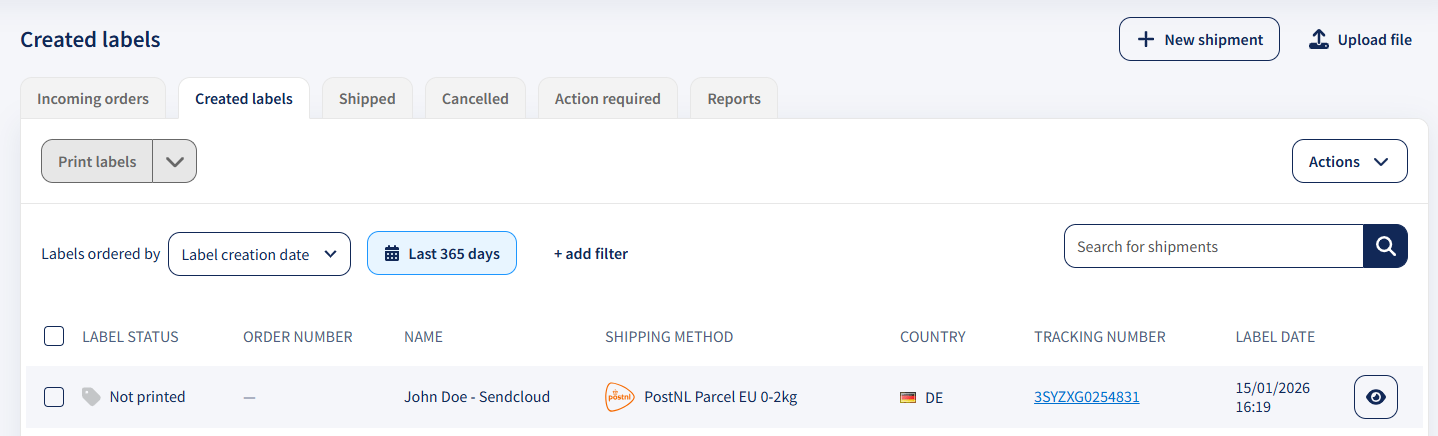
id: The unique shipment ID (e.g."id": 189169249), used for retrieving shipment data later.parcels[]: List of associated parcel objects, each with its own parcel ID used to fetch documents like labels or customs forms.label_fileand carrier announcement results/errors (for synchronous announcements only).- Shipments that have been successfully announced to the carrier start with the status “Ready to Send.” You can view these shipments and their associated parcels in the Sendcloud panel under the Created Labels tab.
Error Handling
Synchronous shipment creation endpoints may return an HTTP 200 status code even if the carrier announcement fails. Always inspect the response’serrors object for issues and verify the shipment.status field. A status of “Announcement Failed” confirms the carrier announcement did not succeed.
For carrier-related failures after an HTTP 200, create a new shipment request to resolve the issue. Shipments in “Announcement Failed” status incur no charges.
See the API reference for full error response details for the:
Advanced Options
Now that you’ve mastered the basics of creating a shipment, it’s time to uncover the full potential of our Shipments API. Explore the features below to help you automate, customise, and scale your shipping operations with ease:- Shipping rules and defaults: Save time by automating your shipping preferences. Set rules to automatically select shipping options, insurance amounts, or default order values based on a set of conditions.
- Multicollo (Multiple parcels): Got an oversized order that won’t fit in one box? No problem! Create shipments with multiple parcels and track them all under a single master tracking number.
- Shipment protection: Safeguard your deliveries against loss, theft, or damage with Sendcloud Shipment Protection. If something goes wrong, you can easily request a refund for your items.
- International shipping: Sending orders across borders? We’ll take care of customs requirements for you. Generate the necessary documentation automatically, no extra hassle required.